
Why is my PrestaShop back office so slow when the shop itself loads fine?
The storefront is mostly served from cache, but every back office screen is built fresh. Here is what usually slows the PrestaShop admin, how to find which cause is yours, and how to test fixes without risking the live store.
A PrestaShop back office is usually slow while the shop feels fast because the shop is served largely from cache and the back office is not. Every admin screen is built fresh for you, with live database queries and the code of every module attached to that screen, so problems that caching hides on the storefront show up in full there. The usual causes are the orders list working through years of data, the dashboard's statistics modules, third-party modules that run on every admin page, database tables full of old logs and carts, developer settings left switched on, and a server that is too small for the store.
Screen and setting names below are as they appear in PrestaShop 1.7 and 8. Other versions have most of the same settings, sometimes in a different place or under a slightly different name, so if a name doesn't match, look for the closest equivalent.
Why the shop and the back office behave so differently
When a visitor opens a product page, PrestaShop can reuse a lot of work done earlier. Templates are already compiled, many stores run a page cache module, and some sit behind a CDN (a network of servers that keeps copies of your pages closer to shoppers). A visitor who isn't logged in sees roughly the same page as the next one, so building it once and serving it many times makes sense.
Want someone to look at it with you? The free check emails you a short report on the store in a few minutes, including whether its PrestaShop and PHP versions still get security fixes. Finding what slows a back office is part of our PrestaShop speed optimization, which starts with a free store review.
The back office can't work that way. You are logged in, the figures have to be current, and you are asking for things that change all the time: today's orders, stock, a customer's history. So each click goes to the database and runs whatever PHP code (the programming language PrestaShop is written in) the page and its modules need. A fast storefront tells you very little about how healthy the admin is.
The orders page gets slower as the store grows
If the orders list is the worst screen and others are bearable, look at the database first. The list reads more than one table. For each row it pulls in the customer, the delivery address, the country, the status and the total, and on some versions whether this is the customer's first order. On a young store that costs nothing. After years of orders, the database has to join and sort a lot of rows, and every sort or filter you click repeats the work.
At the bottom of each list there is a pagination control that sets how many rows show per page, with a fixed set of choices up to the largest ones. A big page is handy for scanning, but each load then fetches and renders that many orders with all their joined data, and the choice usually stays selected the next time you open the list. Switching back to a small page size is the quickest test you can run.
Sorting and filtering add their own cost. Filtering by customer name or sorting by total means comparing values across every order, unless an index covers that column. An index is a lookup structure the database keeps so it can go straight to the matching rows instead of reading all of them. Stores that have been through several upgrades and module installs sometimes end up with indexes missing or duplicated compared with a clean install. A developer can check this by comparing your table structure with a fresh install of the same version.
Modules that add columns to the orders list, such as invoice numbers, shipping labels or marketplace order IDs, add more lookups per row. If the list is fine but opening a single order is slow, check modules that show something on the order page. They attach to hooks whose names start with displayAdminOrder. Shipping and payment modules there often call the carrier's or payment provider's servers for tracking or transaction details, and the page waits for the answer.
The dashboard and the statistics it collects
The dashboard you land on after logging in is made of separate modules for activity, trends, goals and product figures. Each runs its own calculations over orders, carts and visits. On a store with a long history these get expensive, and since the dashboard is the first page you see, it makes the whole admin feel slow even when other screens are fine. A quick way to check is to open the orders page directly from a bookmark and compare.
The dashboard and the Stats section rely on data PrestaShop collects about visits: connections, page views and where visitors came from. When that collection is on, a busy store writes new rows on most visits, and the stats screens read through all of it later. If you take your traffic numbers from another tool, it's worth asking whether you need PrestaShop to record them as well.
Modules that run on every admin page
Modules attach themselves to hooks, which are points in PrestaShop's code where a module is allowed to run. Some hooks fire on every back office page; displayBackOfficeHeader and actionAdminControllerSetMedia are the two to look at. A module attached there that loads its own scripts everywhere, checks its license with an outside server, or looks for updates on each page load slows down screens that have nothing to do with it.
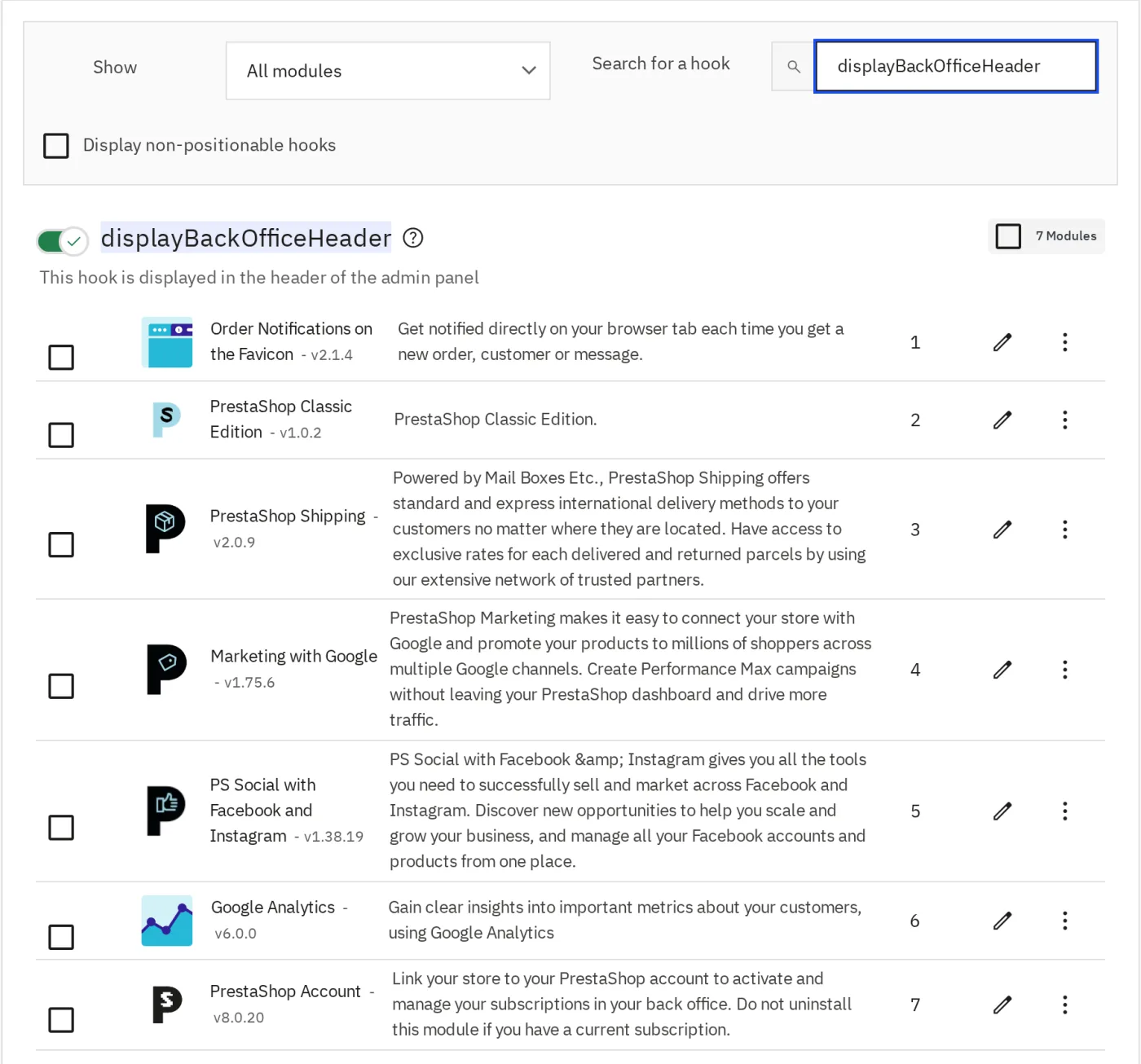
You can see which modules are attached to a hook on the Positions page (under Design in 1.7 and 8), where you can filter by hook name. A long list under displayBackOfficeHeader, especially of modules you no longer use, is a good place to start testing.
The back office also contacts PrestaShop's own servers, for example for the module catalog and update information. If the host blocks outgoing connections or those requests are slow, pages that make them wait until they time out. Your host can tell you whether the server can make outgoing HTTPS connections.
Tables that grow and are never trimmed
Several tables keep growing unless someone trims them. With the default ps_ prefix, the usual ones are ps_connections, ps_connections_page, ps_connections_source and ps_guest (visit tracking), ps_cart (which holds abandoned carts as well as carts that became orders), ps_log (the back office log), ps_mail (the record of sent emails), ps_pagenotfound and ps_statssearch. Shoppers barely notice any of this, so it goes unchecked for years while admin screens that read these tables, and your backups, get slower.
Trimming them helps, but it's work for someone comfortable with the database, done after a full backup and tried first on a staging copy (a private duplicate of the store). Carts linked to orders must stay. Delete the wrong rows and you can lose order history or records you need for accounting and payment disputes, with no way back except the backup.
Debug mode and template compilation
After a redesign or a module install, development settings often stay on. In 1.7 and 8 both sit on the Performance page under Advanced Parameters. Debug mode makes PrestaShop collect extra information on every request and show errors on screen, which costs time on every click. The template compilation setting has an option to force compilation, which rebuilds templates on every page load instead of reusing them. On a live store, debug mode should be off and compilation should not be forced.
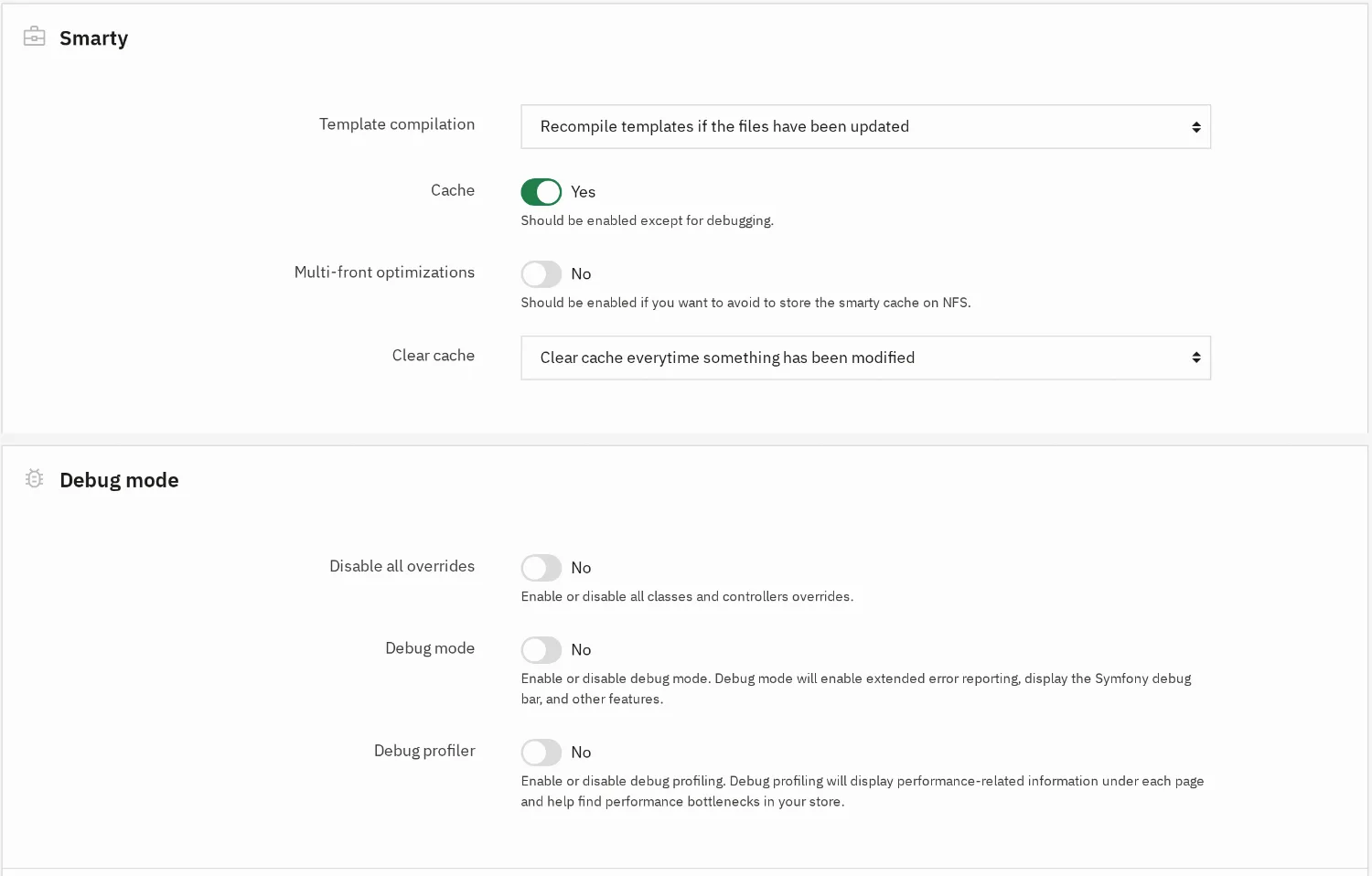
The same page has a button to clear the cache. It can help after an upgrade, when old cached files no longer match the new code, but the first pages after clearing load slower while caches rebuild, for shoppers too. Do it at a quiet hour.
When the server is the cause
Because the storefront is cached, a weak or overloaded server can go unnoticed for a long time. The signs that the server is behind the slow admin are that everything is slow rather than one screen, that it gets worse at busy times, and that it stays slow on a staging copy even with suspect modules disabled. We'd find the cause before paying for a bigger plan, because a slow module or an overgrown table keeps getting worse on any hardware.
Typical server causes are shared hosting with too little memory or too few PHP processes for the store, a database running on the same overloaded machine, OPcache switched off (OPcache keeps PHP code ready in memory so it isn't re-read on every request), and an old PHP version. Old PHP is a security issue as well, since versions past end of life get no fixes; the PHP project's supported versions page lists which ones still receive security updates, and we covered what that means for stores in PHP 7.4 is end of life.
Don't switch PHP on a live store without checking first. Each PrestaShop version works only with a certain range of PHP versions, shown in PrestaShop's system requirements documentation, and going outside that range can take the store offline. Modules have their own limits too. Make the switch on a staging copy, test checkout and the back office, and keep a backup. If your PrestaShop version doesn't support a current PHP, the upgrade comes first; our guide on upgrading PrestaShop 1.7 to 9 covers doing that without losing data.
How to narrow it down safely
- Note which screens are slow: everything, only the dashboard, only the orders list, or only a single order. Time a few with a stopwatch so you can tell later whether a change helped.
- On the Performance page, check that debug mode is off and template compilation isn't forced. If you clear the cache, do it at a quiet hour.
- Set the orders, products and customers lists to a small page size and see whether those screens recover.
- On a staging copy, disable dashboard modules you don't use and modules attached to displayBackOfficeHeader, one at a time, timing the slow screens after each. Disabling usually keeps a module's data, but some modules clean up when disabled, and uninstalling often deletes their tables and settings. Never test payment or shipping modules on the live store, since disabling the wrong one can stop checkout.
- Ask your host whether the server runs short of memory or PHP processes, whether OPcache is on, which PHP version the store uses, and whether they can turn on the slow query log, which records every database query that takes longer than a set time.
If that doesn't explain it, a developer can turn on PrestaShop's profiling on the staging copy. In 1.7 and 8 this is the _PS_DEBUG_PROFILING_ setting in config/defines.inc.php; on the older-style admin pages it adds a report showing how long each module took on each hook and which database queries were slowest. The newer admin pages, the orders list among them, show a debug toolbar with timing and query counts when debug mode is on. Together with the slow query log, that points to the exact module or table behind the slow screen. This is the kind of work we do in our free store review, where every store we take on starts. For the speed shoppers feel, our PrestaShop speed optimization guide covers the storefront, and the PrestaShop page explains how we work with these stores.
Want us to look at your store? Start with the free check, a short report on it by email in a few minutes, or book a call.