
Can a speed plugin fix my slow WooCommerce store, or do I need someone to fix it properly?
A speed plugin can make browsing pages faster, but it usually can't reach a slow cart, checkout or admin. Here is how to tell which kind of slow your store has and how to try a plugin safely.

A speed plugin can fix part of a slow WooCommerce store: the pages a visitor browses before they add anything to the cart. It usually can't fix a slow cart, a slow checkout or a slow admin, because those pages can't be cached and their slowness comes from the plugins, database and server underneath. If your problem is only that product and category pages feel heavy, a plugin set up carefully may be enough. If shoppers wait after clicking "Add to cart" or the dashboard crawls, you need someone to find the cause.
What a speed plugin actually changes
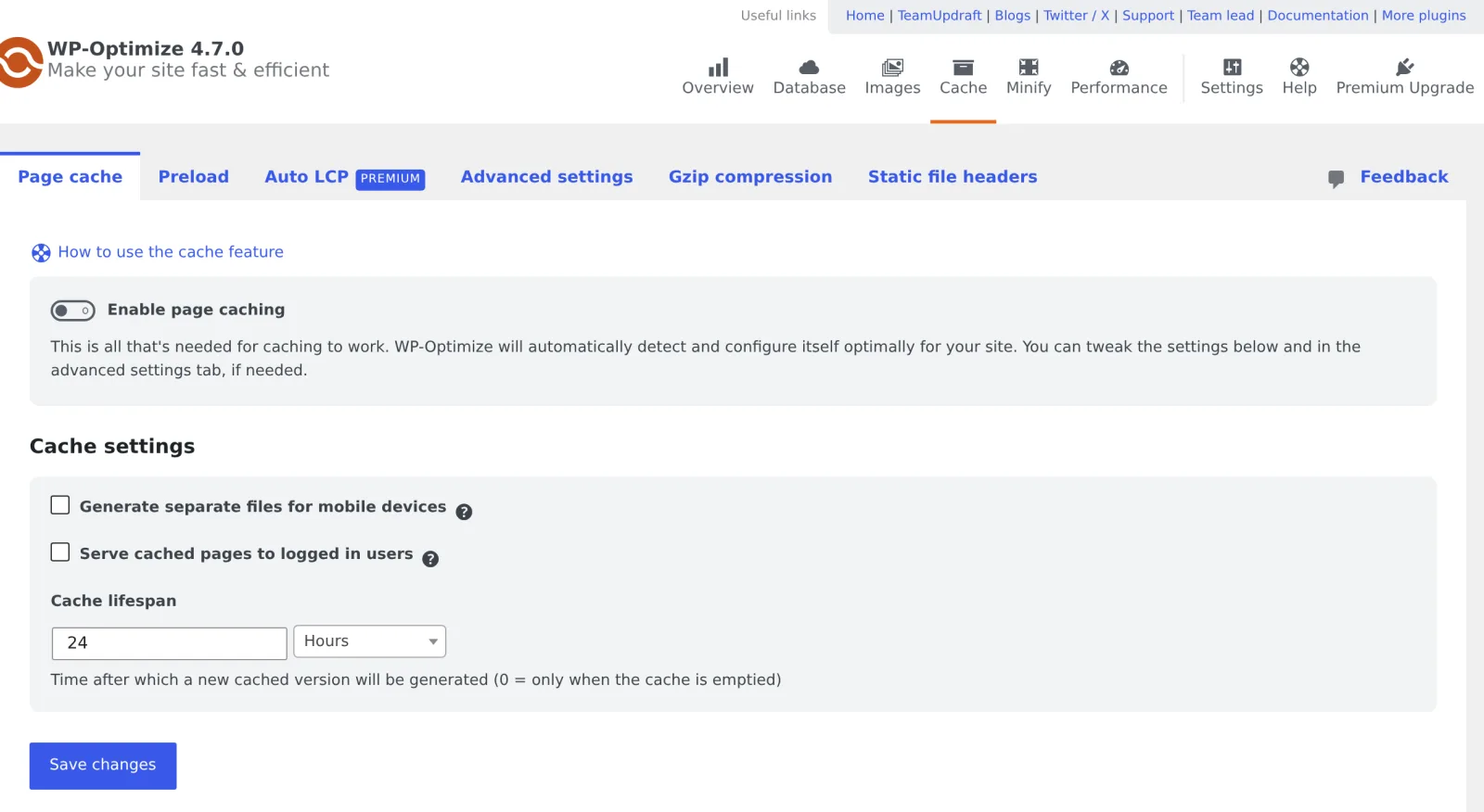
Most WordPress speed optimization plugins do the same handful of jobs. The biggest one is page caching. Normally, every time someone opens a product page, WordPress runs code and asks the database for the product, the prices, the menu and the widgets, then builds the page from scratch. A page cache saves a finished copy of that page and hands the copy to the next visitor, which skips almost all of that work. On a store with plenty of browsing traffic, this is the single change most likely to make a visible difference.
Find out which kind of slow you have. The free store speed test times the cart next to the home page, a category and a product, which tells you quickly whether a cache plugin can help. When it can't, WooCommerce speed optimization is a fixed-price Speed Fix from $2,500, set after a free store review.
The other jobs are about what the browser has to download. Plugins compress and resize images, convert them to lighter formats, load images further down the page only when the visitor scrolls to them, combine or shrink CSS and JavaScript files, and delay scripts that aren't needed straight away. These help the scores in Google's PageSpeed Insights, and they can help the measures Google calls Core Web Vitals: how fast the main content appears, how quickly the page responds to a tap, and how much the layout jumps around while loading. We explain those three in plain words in our post on Core Web Vitals for ecommerce.
Some plugins also offer "database cleanup", which deletes old post revisions, spam comments and expired temporary data. That is tidying, and it's fine, but it doesn't touch the things that usually make a WooCommerce database slow.
Why the cart, checkout and admin stay slow
A cached copy only works when every visitor should see the same page. The cart, checkout and My Account pages are different for every person, so they have to be excluded from the page cache, and the well-known caching plugins usually exclude them by default. Many setups also skip the cache entirely for anyone logged in or anyone who already has something in their cart.
Those pages are built live on every request, which means their speed depends on how much work the server has to do. That work comes from the extensions you run: shipping rate calculators that call outside services, tax plugins, payment gateways, discount and loyalty rules, marketing tags that fire on checkout, and anything that hooks into "add to cart". It also depends on the database (how many orders, how much leftover data from plugins you removed years ago, missing indexes) and on the server itself: how much memory it gives your store, which PHP version it runs, and whether it has an object cache, which keeps answers to frequent database questions in memory so they don't have to be looked up again. A plugin can switch on an object cache only if your host already provides the software for it. If your store still runs on an old PHP version, our post on PHP 7.4 end of life explains why that matters.
The WordPress handbook's own page on optimization treats caching as one part of performance alongside hosting, the server setup and the database, and that matches how we see it. We go through the usual causes of a slow cart and checkout in more detail in Why is my WooCommerce checkout and add to cart so slow?
The WordPress admin is never served from a page cache either. A dashboard that takes ages to open the orders list or save a product points to the server, the database or a plugin doing heavy work in the background, such as a stock sync or a reporting extension that recalculates every time a screen loads.
Free plugins, paid plugins, and running more than one
A free WordPress speed optimization plugin can do the core job well. Page caching and basic image compression are available in free tools, and some hosts include their own caching that works better with their servers than a third-party plugin would. Before installing anything, check whether your host already caches pages for you, because two page caches on top of each other tend to cause strange problems: customers seeing stale prices, carts that empty themselves, or changes that don't show up. One well-configured caching plugin plus sensible image handling does more good than several optimization plugins competing over the same files.
Paid versions mostly add convenience and the more aggressive options, such as delaying JavaScript, removing unused CSS and generating critical CSS, and those options are the ones that tend to break things. Delaying scripts can stop a payment button, a variation dropdown or a cookie banner from working until the visitor moves the mouse. Removing "unused" CSS can strip styles that only appear in the mini cart or at checkout, because the plugin never saw those parts of the page when it decided what was unused.
How to tell which kind of slow you have
You can get a fair idea in a few minutes without any technical tools. Use a private browser window so you are not logged in, and do it on your phone as well as your computer.
- Open your home page, a category page and a product page on your computer. Then open the same pages on your phone with Wi-Fi switched off, so it uses mobile data. A page cache stores its copy on the server, not in your browser, so cached pages should load quickly on the phone even though the phone has never visited them. Reloading on the same device doesn't prove much, because your browser keeps its own copies of images and files. Your caching plugin or hosting dashboard usually also shows whether caching is active, and many caching tools add a note in the page source or response headers saying the page came from the cache.
- Click "Add to cart" on a product and count how long it takes for the cart to update.
- Go to the checkout, enter a real US address, and watch how long shipping options and totals take to appear.
- Log in to the admin and open the orders list, then edit and save a product.
- Run a product page through PageSpeed Insights and note which problems it lists first.
If only steps 1 and 5 look bad, a plugin is a reasonable first move. If steps 2, 3 or 4 are slow, a plugin usually won't reach the cause. Write down which step was slow and roughly how many seconds it took on each device, because that is the first thing anyone diagnosing the store will need.
Trying a plugin without breaking the store
Test on a staging copy first. Many hosts can create one for you, and it lets you switch settings on and off without customers seeing broken pages. Take a full backup of files and database before you change anything on the live store, and make sure you know how to restore it.
Turn on one feature at a time and check the whole buying path after each one: product page, variation selection, add to cart, cart, checkout with each payment method, and the order confirmation email. Place a real test order. If something breaks, switch the last setting off rather than piling another fix on top. When you remove a speed plugin later, check whether it left files or rules behind on the server; some caching plugins add settings that need to be cleaned up, and their own instructions usually say how.
Keep watching after it's live. Plugin and WooCommerce updates can change how cached pages behave, so rerun the buying-path check after updates as part of regular upkeep, like the routine in our WooCommerce maintenance checklist.
When it needs someone to fix it properly
Proper WooCommerce performance optimization starts by measuring where the time goes on the slow requests: which plugin, which database query, which outside service, which server limit. Sometimes the answer is a single extension that runs a heavy check on every page. Sometimes it's years of leftover data, a hosting plan that is too small for the order volume, or a theme loading everything everywhere. The fix for each is different, from removing or replacing the extension to cleaning the database, moving to a larger plan or changing how the theme loads its files.
Call someone in when checkout or add to cart is slow, when the admin gets in the way of daily work, when the store breaks after optimization settings, or when you've tried a plugin and the scores barely moved. At SwiftForge Web every new store starts with a free store review, which tells you what is slow and why before anyone changes anything. Our speed optimization page describes how we approach the fixes themselves.
Want us to look at your store? Book a call.