
Shopify handles my hosting, so why is my Shopify store still slow?
Shopify runs the servers, but a slow Shopify store usually comes from what each page asks the shopper's phone to load: apps, theme code, heavy images and tracking tags. Here is how to find the cause and clean it up safely.
Shopify takes care of the servers, so the hosting side of speed is not something you manage. When a Shopify store is slow, the cause is usually what each page asks the shopper's phone to download and run once it arrives: app scripts, theme code, large images or video, and marketing tags. You control all of those, and most of them can be cleaned up without leaving Shopify.
What Shopify's hosting covers, and what it doesn't
Shopify stores your products and sends each page out when a shopper asks for it. You don't choose a server size, install caching software or worry whether a sale email will overload the machine, which are real chores for WooCommerce and PrestaShop owners.
What Shopify doesn't decide is what goes into the page. After the page reaches a phone, the browser still has to fetch and run the theme's code and styles, every app's script, fonts, images, videos, review widgets, chat bubbles, pop-ups and marketing pixels. On a mid-range phone with an average mobile connection, that work takes time however quickly the server answered, and a page carrying many extra scripts will be slower than one carrying few.
Apps slowing down your Shopify store
Apps are the first place we look. Many apps that show something on your storefront (reviews, upsells, wishlists, size charts, countdown timers, loyalty widgets, pop-ups) load their own JavaScript, which is the code that makes a page interactive. Some load it on every page, including pages where the app does nothing. Each script may be small, but the phone has to download it, read it and run it before the page fully responds to taps, and those costs add up.
Measure it on a phone. The free store speed test takes your store's address and shows how long a shopper waits on a simulated phone. We don't work on Shopify stores, but if speed is one of several reasons you are thinking of leaving, the cost calculator and our Shopify to WooCommerce migration page show what a move involves.
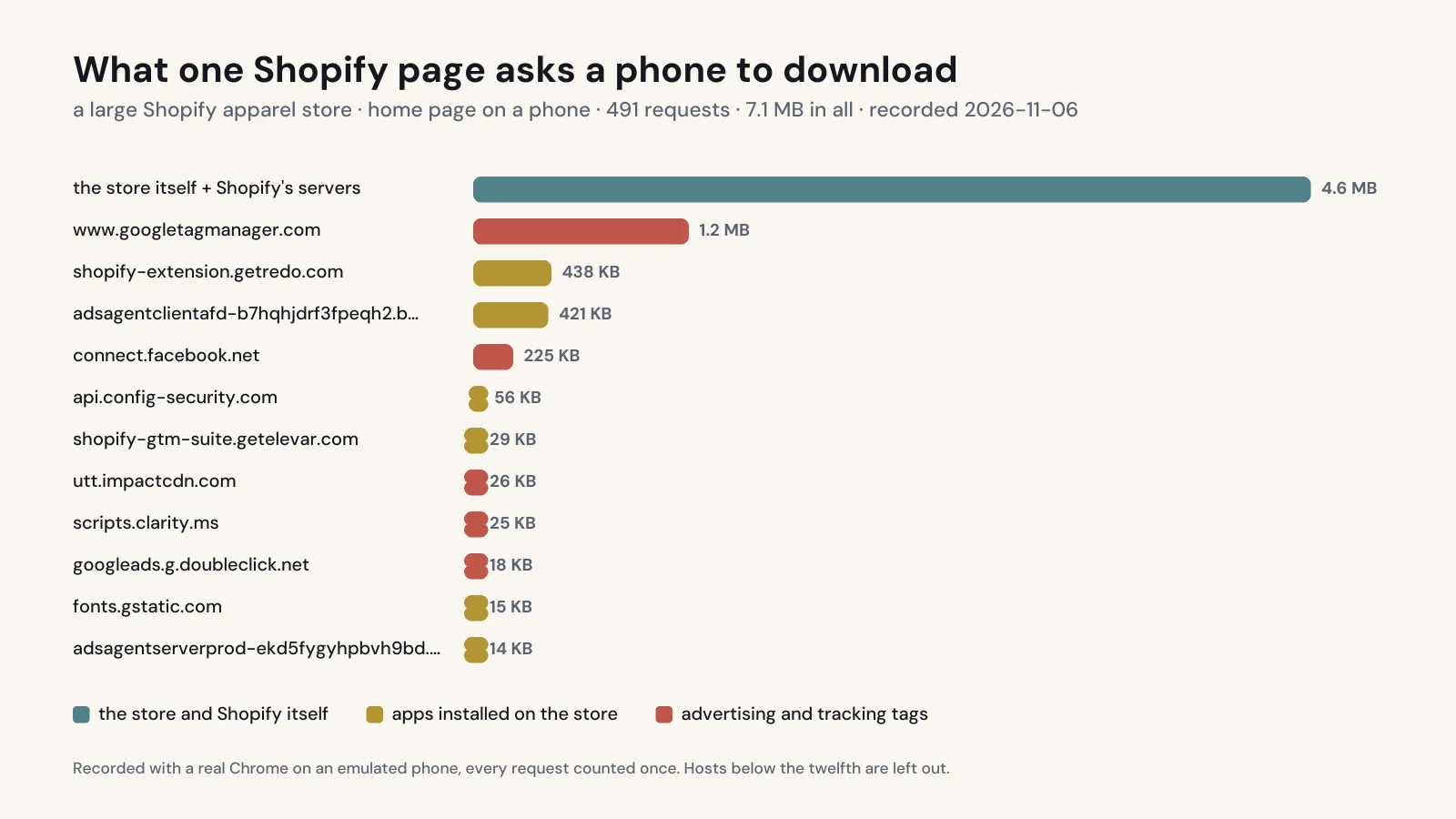
Stores also collect apps over time. One gets installed for a holiday promotion, another is tested and forgotten, two end up doing nearly the same job. Apps can also add code directly into theme files, and that code doesn't always disappear when you uninstall the app. Leftover code can keep calling for files that no longer exist, or keep loading a script for a service you stopped paying for long ago. Removing paid apps you don't use has a second benefit, since they show up on your monthly bill; we go through those costs in what Shopify really costs a store doing $30k a month.
Newer apps usually connect to the theme through app embeds and app blocks, which you can switch off in the theme editor without touching code. That makes testing much easier, as the steps further down show.
We don't recommend installing an app to fix the speed problems other apps caused. Speed apps often add code of their own, and while some can delay or hold back other scripts, removing the app or pasted snippet that asks for a script in the first place is the more reliable fix. If a speed app is already installed, test the store with it switched off the same way you test any other app.
When the Shopify theme is slow
Themes compete on features, so many ship with mega menus, animations, quick-view windows, sliders, video backgrounds and several font options. A theme that felt quick on its demo store can behave differently once it carries your real catalog, your real photos and a few years of edits.
Customization is the other half. If a developer added sections, pasted in snippets, or copied code from an old theme into a new one, the theme may be loading things nobody uses anymore. A theme that hasn't been updated in years also misses improvements its maker has released since. Shopify publishes performance guidance for theme developers, and it's a useful page to send whoever maintains your theme when you ask them what could be lighter.
Switching themes is a bigger job than it sounds, because sections, settings and custom code don't carry over automatically. If your theme is old and heavily edited, a new one is often still the right call. Plan it as a project, with the new theme set up and previewed as an unpublished theme before it goes live.
Images, video and sliders
The top of the page decides how quickly a shopper sees something useful. A homepage that opens with an autoplaying video, or a slider with several full-width photos, asks the phone to fetch a lot before anything meaningful appears. Product photos uploaded straight from a camera or a photographer's export can be far larger than any screen needs.
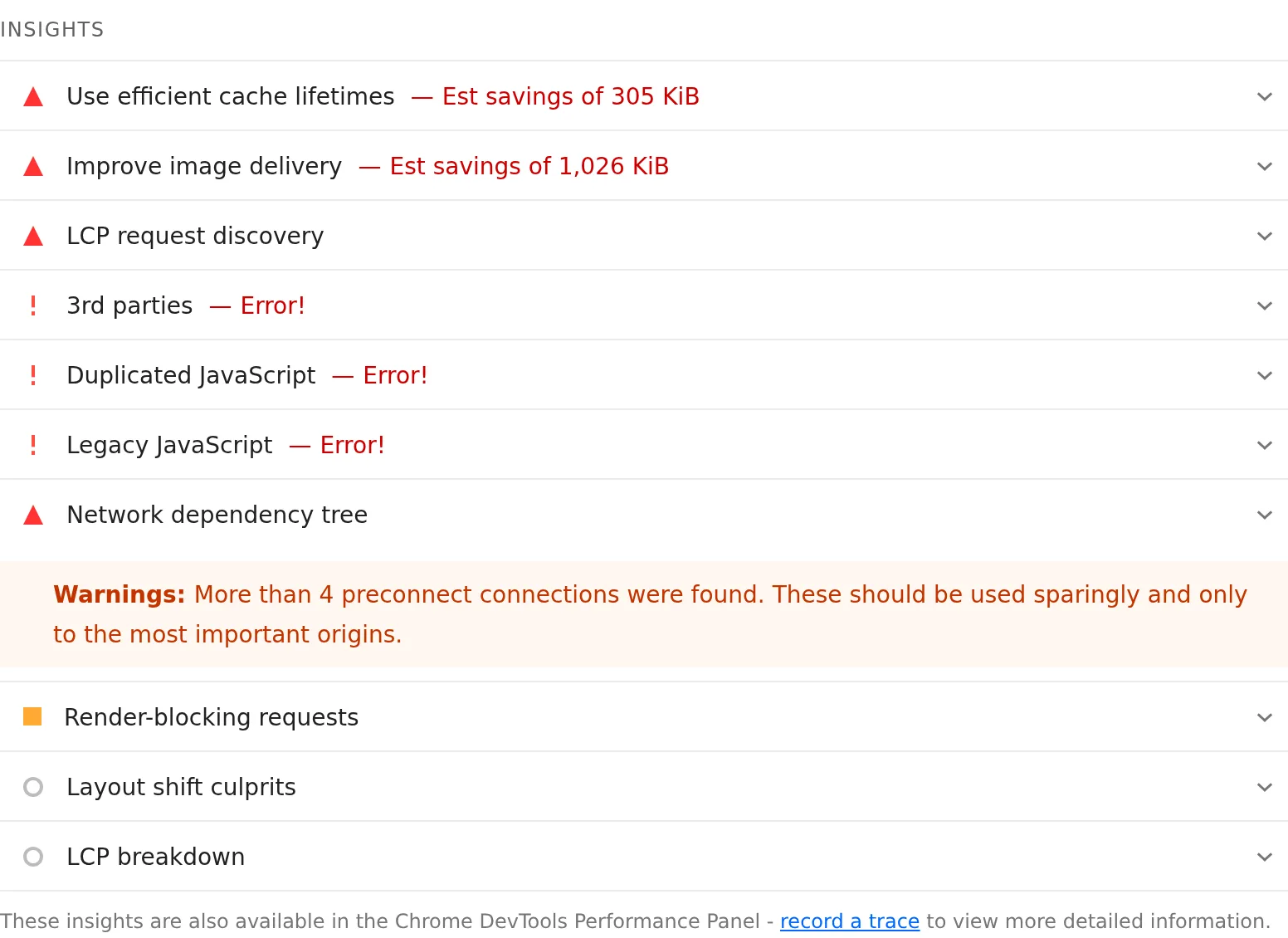
That top area matters most for Largest Contentful Paint, one of Google's Core Web Vitals, which measures how long the main content takes to show up. We explain all three measures in our post on Core Web Vitals for ecommerce. We think one strong, well-sized photo with a clear headline usually serves a store better than a rotating slider, for speed and because the message on a single image doesn't depend on the shopper waiting for the next slide.
Tracking pixels and pasted code
Every analytics or advertising service connected to your store loads at least one script, and some of those scripts load more of their own. That includes Google, Meta, TikTok and Pinterest tags as well as email, heatmap and affiliate tools. When some were added through an app and others pasted into the theme by hand, the same pixel can end up loading twice.
Where a service offers an official Shopify app or connection, use that instead of pasting its code into the theme, so there is one obvious place to switch it off later. Then ask who still uses each tag. A pixel for an ad account nobody has opened in a year still loads on every page view.
Why your Shopify speed score is low
The low number you've seen is probably a mobile result in Google PageSpeed Insights. The mobile test simulates a mid-range phone on a slower connection, so it usually scores lower than desktop and lower than the store feels on your own new phone. That doesn't make it wrong, because plenty of shoppers browse on exactly that kind of phone.
PageSpeed Insights can also show data from real Chrome visitors when your store has enough traffic. That section shows how the store performs for actual shoppers, and it's what Google's Core Web Vitals guidance is built around. If the real-visitor data passes and only the lab score is low, there is room to improve but no emergency. If the real-visitor data fails, especially on mobile, shoppers are waiting.
How to find what is slowing your store
Work on a copy of the theme and change one thing at a time, testing after each change.
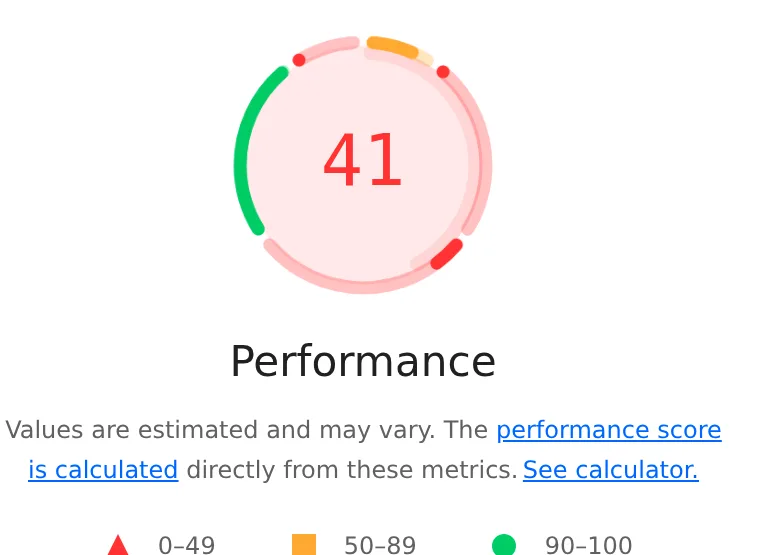
- Test three pages in PageSpeed Insights: the homepage, a busy collection page and a product page. Write down the results and whether real-visitor data is shown, so you have something to compare against later.
- Open your store in Chrome, right-click the page, choose Inspect and open the Network tab. Reload the page and filter the list to JS. The file names and web addresses usually show which company each script belongs to, so you can spot the reviews app, the chat tool or the ad network. You can right-click any address and block it, then reload to see how the page behaves without that script. This only affects your own browser.
- List every installed app and note whether it shows anything to shoppers and whether it still earns its place. An app that only works in the admin can still add a pixel or script, so check your list against what the Network tab showed.
- Duplicate your live theme from the themes page in your admin. On the copy, switch off app embeds and remove app blocks for the apps you suspect, then preview the copy and compare it. Chrome's developer tools include Lighthouse, which runs the same kind of lab test on a preview you're logged into. Your live store doesn't change while you do this.
- Before uninstalling any app, check what it stores. Uninstalling a reviews, loyalty or subscription app can remove its data, so export reviews, points balances or customer lists first and read the app's own instructions for leaving.
- Before anyone edits theme code, download a copy of the theme from the themes page so you have the original to go back to. Then search the duplicate's code for the names of apps you've removed, starting with the theme.liquid file (which loads on every page) and the snippets folder, and delete leftovers on the duplicate only. If you're not comfortable reading theme code, this is the step to hand to a developer.
- Look at the top of your homepage and product pages. Replace autoplaying video with a still image where you can, cut sliders down, and replace oversized photos with versions exported at a sensible size.
- Remove tracking tags nobody uses, and move the rest to official Shopify apps or connections where they exist.
- Before publishing, use the duplicate's preview to add products to the cart, change quantities, apply a discount code and go through checkout up to the payment step. Check that the apps you kept still show where they should.
- Publish the cleaned-up theme, keep the old one in your theme library as a fallback, and re-test the same three pages. Google says the real-visitor data in PageSpeed Insights covers the previous 28 days, so give it about a month before you judge it.
For a broader list of fixes across platforms, our guide on speeding up an ecommerce store covers more ground.
Is Shopify itself slow?
Every Shopify store runs on the same platform, so when one store is noticeably slower than another, the difference usually comes from the theme, the apps and what sits on its pages. Catalog size, traffic and checkout setup differ between stores too, and Shopify can occasionally have a problem of its own. We still check the theme and apps first, because those are the parts an owner can change.
It also matters if you're thinking about leaving Shopify because of speed. The same apps, widgets and tracking tags tend to follow a store to its new platform, so moving without cleaning up first can bring the problem along. There are good reasons to move, and we cover them in Shopify alternatives, from someone who doesn't sell Shopify. If speed is the main reason, work through the steps above first and compare the results with the numbers you wrote down, so you know how much of the slowness came from the store's setup before you decide.
Want us to look at your store? Start with the free check, a short report on it by email in a few minutes, or book a call.